Claude MCP Guide
Connect Normi to Claude
Normi is in the Claude connector directory: add it in one click, sign in to Normi, approve. No key to copy. Works on claude.ai, Claude Desktop, the mobile app and Cowork.
From the Claude directory (recommended)
- 1Open the Normi listing in the Claude connector directory (button below) and click to add it. Sign in to Claude first if needed.
- 2Claude opens normi.fr: sign in with Google or your Normi account, check that the page names Claude and claude.ai, then click Authorize.
- 3You land back in Claude with the connector active. Ask your first question.
Before you start
A Claude account (free or paid).
A Normi account, or a Google account to create one while connecting.
That’s it: if you don’t have an API key yet, one is created on your first approval (500 free credits).
Add it manually (custom connector)
Useful when the directory doesn’t show in your workspace (some organisations turn it off) or for an MCP client that doesn’t offer it. The result is the same.
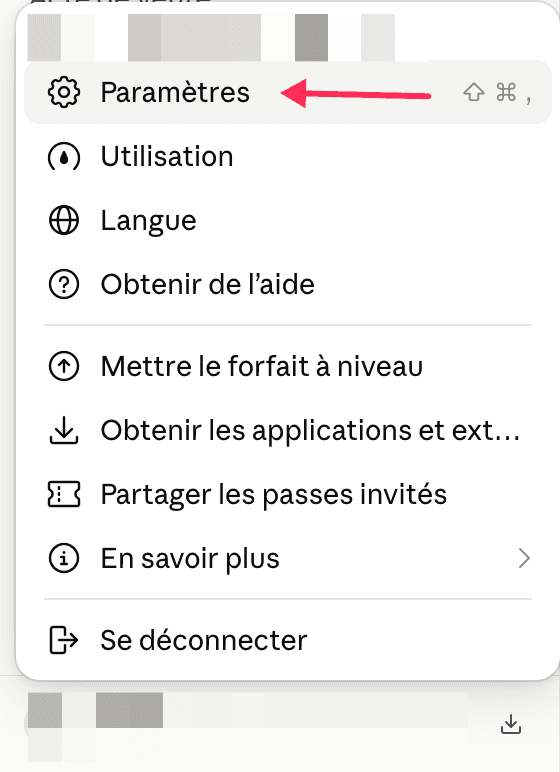
https://mcp.normi.fr/mcp- 1In Claude, open your account menu (bottom left), then Settings.
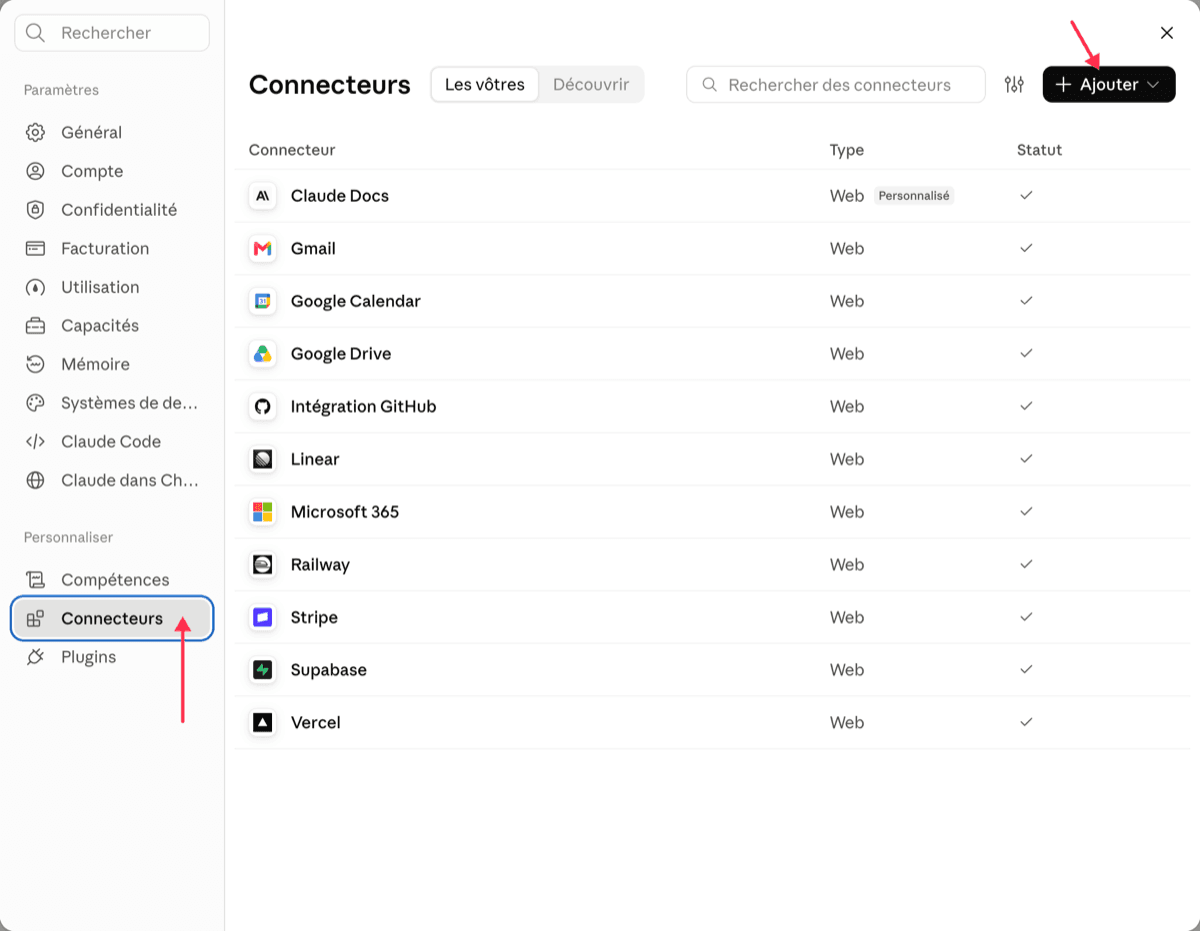
- 2Open Connectors, then click Add and choose a custom connector.
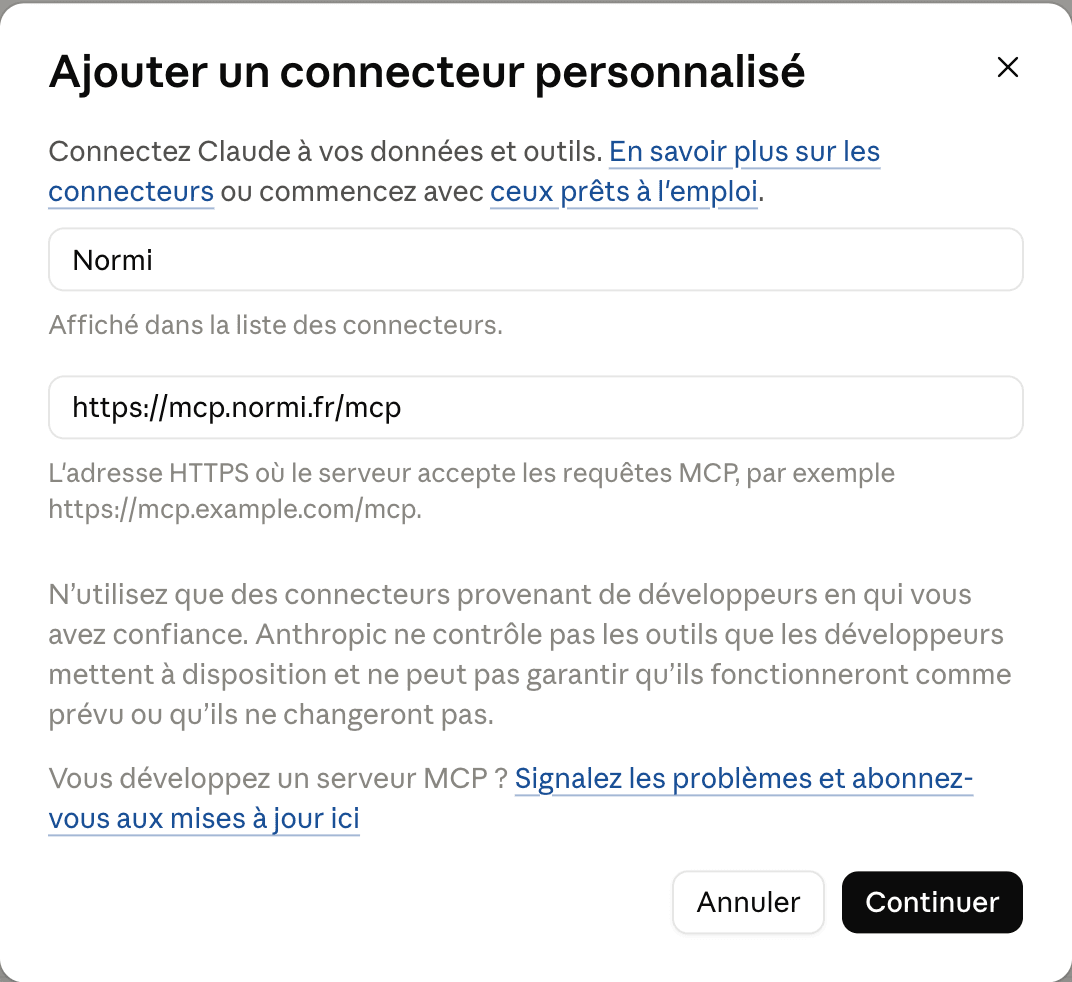
- 3Name it Normi, paste the URL https://mcp.normi.fr/mcp, then click Continue.
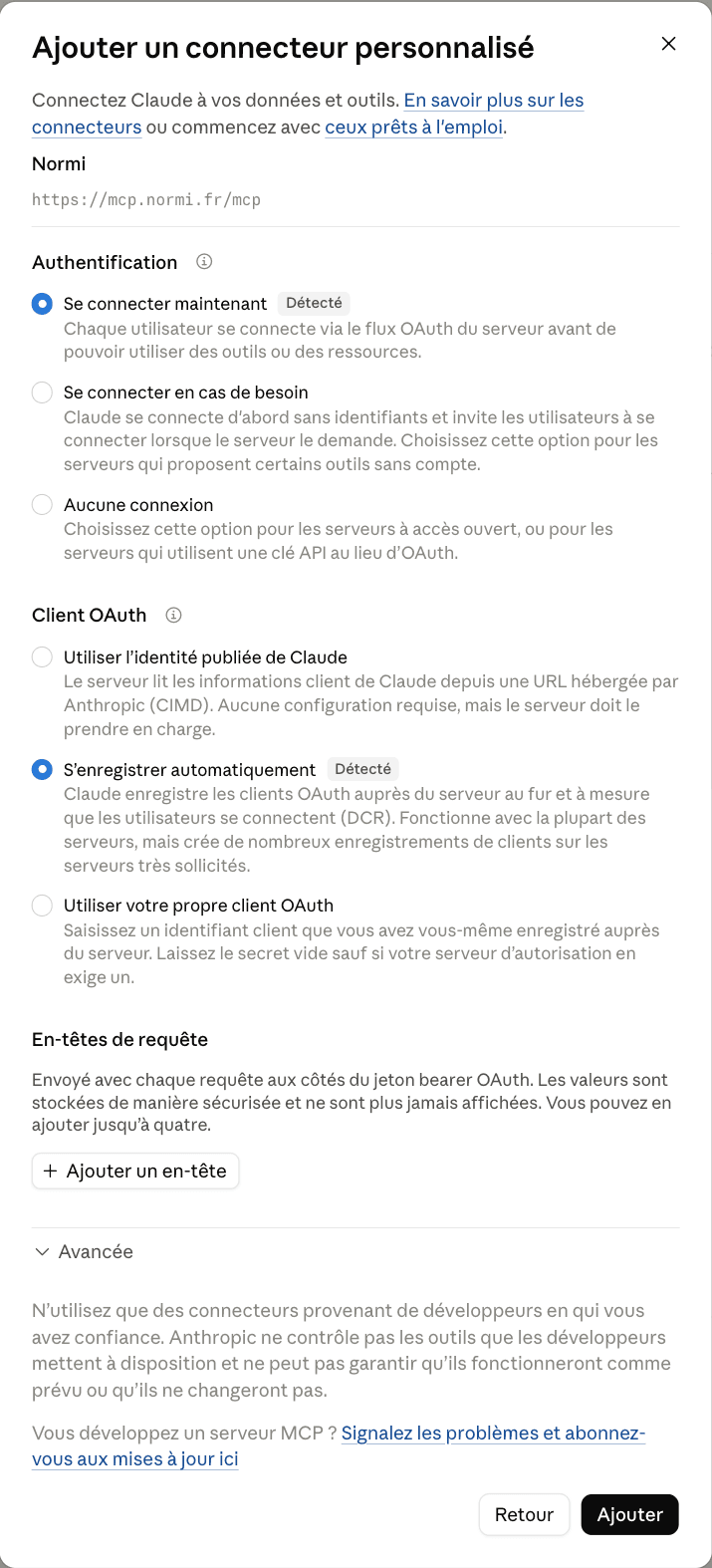
- 4Claude detects OAuth sign-in (“Sign in now”) and automatic client registration on its own. Change nothing, add no header, then click Add.
- 5Click Connect: Claude opens normi.fr. Sign in if needed, check that the page names Claude and claude.ai, then click Authorize. You land back in Claude with the connector active.
Good to know
- Credits: each tool call is charged to your Normi account’s active API key, at the same price as with a key.
- Signing out of normi.fr does not disconnect Claude. Neither does creating a new API key: the connector follows the new key.
- To cut access: Normi dashboard → Tokens → Connected apps → Revoke. Takes effect on the next call.
Claude Code
Add the server, then run /mcp inside Claude Code: it opens the same Normi sign-in page.
claude mcp add --transport http normi https://mcp.normi.fr/mcp
# then, inside Claude Code:
/mcp
Without a browser (CI, remote machine), use an API key instead:
claude mcp add --transport http normi https://mcp.normi.fr/mcp --header "Authorization: Bearer YOUR_TOKEN"
Other methods
Claude Desktop with an API key, through the @normi/mcp-dvf STDIO package (claude_desktop_config.json):
{
  "mcpServers": {
    "normi": {
      "command": "npx",
      "args": ["-y", "@normi/mcp-dvf"],
      "env": { "NORMI_API_KEY": "normi_YOUR_TOKEN" }
    }
  }
}
URL
Clients without OAuth: create a secret connector URL in Dashboard → Tokens → AI connectors (Advanced section). The URL contains a secret: don’t share it.
Test the connection
What is the median price per m² for apartments in Lyon 6?
Troubleshooting
The Normi page says the link is invalid or expired: restart the connection from Claude (Settings → Connectors → Normi → Connect).
“no active API key” on every call: you revoked your only key. Create one in the dashboard; the connector resumes by itself.
“The authorization for this app was revoked”: access was revoked. Reconnect the connector in Claude.
Insufficient credits: top up your balance from the Normi dashboard.
Normi never sees your Claude password, and Claude never sees a Normi key: access goes through a revocable OAuth token, limited to the MCP server.